Hosted MCP Server (Claude)
Connect Claude to Bluente’s hosted MCP server at https://mcp.bluente.com/ and translate documents by chatting. You sign in with your Bluente account — no install, no API key. New to Bluente MCP? Start with the overview for how billing, settings, and download links work.
Claude web & desktop
Setup (one time). Custom connectors require a paid Claude plan — on a free plan, use the Local MCP Server instead.
- Open Settings → Connectors → Add custom connector.
- Enter
https://mcp.bluente.com/and choose Connect. - Complete the Bluente login in the browser window that opens.
On Team/Enterprise plans, an admin may need to add the connector organization-wide.
Adding the connector does not switch it on by itself: in each conversation, open the tools menu in the composer and make sure Bluente is enabled, or Claude will not see the translation tools.
Two required settings
Claude needs two settings enabled before it can send your files to Bluente. A file you attach lands in Claude’s code-execution sandbox, which can’t reach mcp.bluente.com until you allow it.
Both live under Settings → Capabilities.
1. Turn on code execution
Under Code execution and file creation, enable Cloud code execution and file creation.

Settings → Capabilities → Code execution and file creation.
2. Turn on network egress and allow mcp.bluente.com
On the same page, enable Allow network egress. Then, under Domain allowlist → Additional allowed domains, type mcp.bluente.com and press Add.
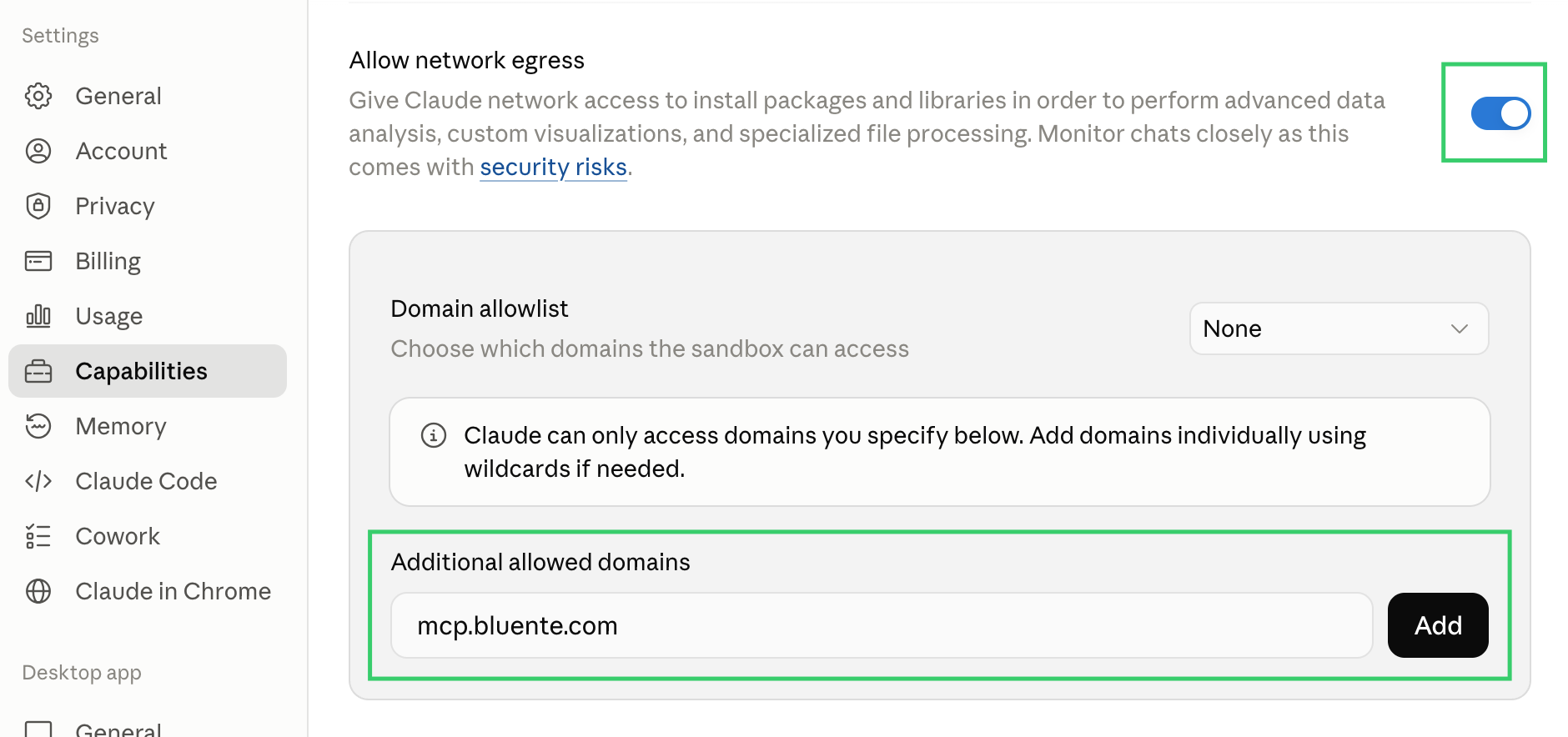
Enable Allow network egress, then add mcp.bluente.com to the domain allowlist.
On Team or Enterprise plans these may be locked to your organization — an admin sets them under Organization settings → Capabilities, including adding mcp.bluente.com to the allowed network domains.
If you cannot enable egress, small files (under 2MB) still work through an inline fallback, and you can always give Claude a publicly accessible file URL instead.
The flow you’ll see: attach the file → Claude shows a confirmation card with the page count and settings → you confirm (or adjust the language, format, mode, or page range) → download link(s), valid 15 minutes. Nothing is charged until you confirm. See Settings you’ll be asked about for what you can change.
Claude Code (terminal & IDE)
Setup:
claude mcp add --transport http bluente-translate https://mcp.bluente.com/Then run /mcp and choose Authenticate to complete the browser OAuth login. Add --scope user to the command above to enable it in all your projects.
The hosted server can’t read files on your machine by itself — Claude Code routes local files through an upload step automatically, but if you mainly translate local files, the Local MCP Server (API key, reads files directly) is the simpler fit. The hosted server is the right choice when you prefer OAuth over API keys or work with file URLs.
Troubleshooting
See Troubleshooting in the overview — reconnect prompts, expired download links, and upload limits.